Articles
Articles are the what of what is being tracked, calculated and kept in stock.
Before buying devices to track with, we generally confer with you what articles you are planning to track and based on
packaging and dimensions, we help you selecting the correct device for the job. More often than not, the easiest way to
do so is providing us with accurate measurements of the articles, since those will be needed for calculations on our
platform anyway.
You can find your Articles list in our Cloud at Administration > Articles.
While we explain how to manually manage your articles here, we recommend automating these tasks by integrating with our APIs.
You can create articles with as little data as you want. You could even create an empty entry, if you wanted to, because all articles can be edited after creation. Keep in mind though, that before you can use the article for automatic ordering, you will need to provide a minimum of information. More on this in the chapter on fields and their meaning.
Adding Single Articles
You can add a single Article to the list, by choosing the Create button right above the list.
It will open a dialogue where you can input all data.
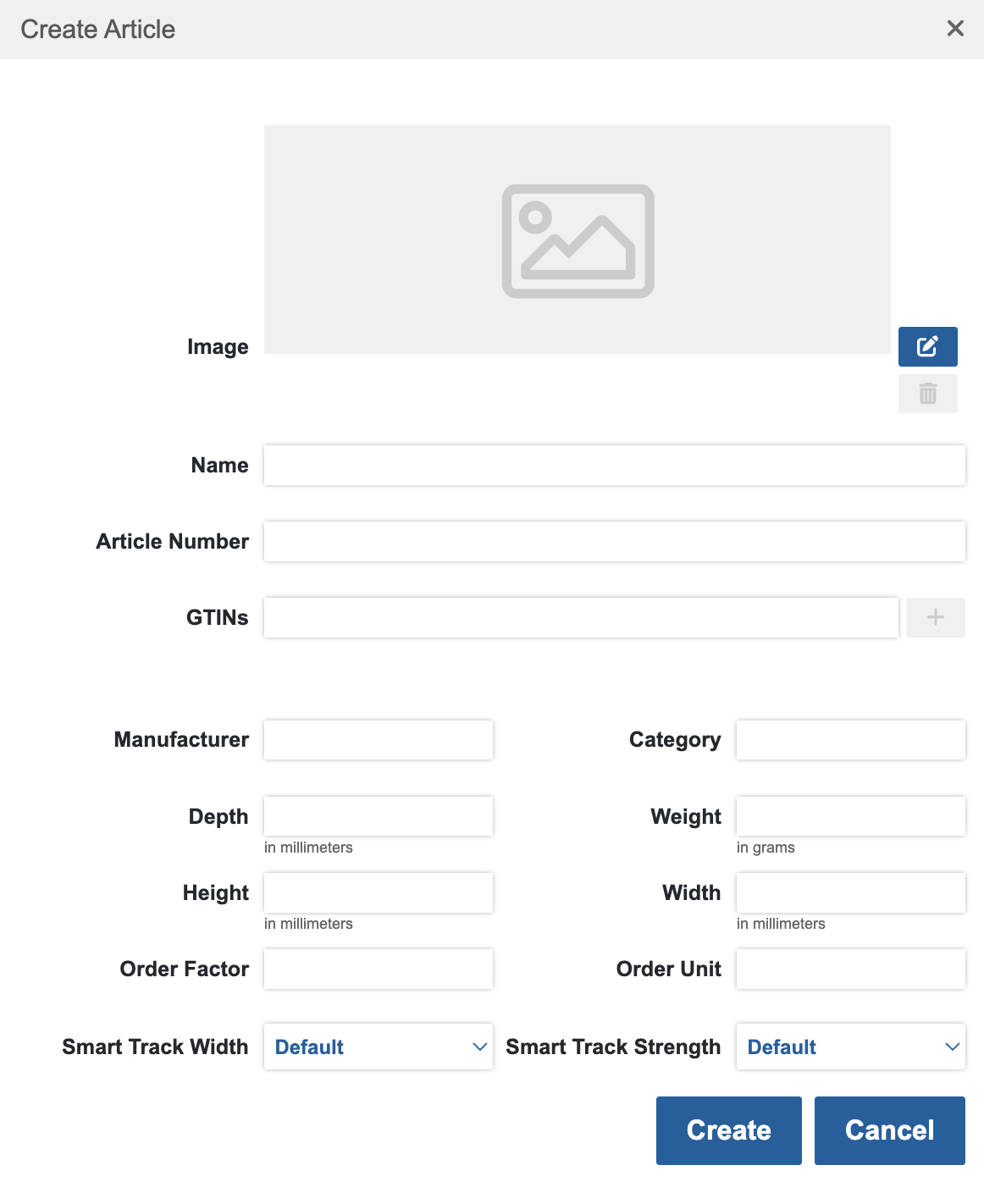
Once you're done putting in the data, click Create on the dialogue, which will then close and you can continue.
Importing Multiple Articles
You can import multiple articles by clicking on Import Articles which will open a new page and prompt you to update
your .csv file.
After selecting the file, click Check data. This will start a dry run and show you, how importing the file will update the existing list.
You should see a summary of created, updated and ignored rows. Below the summary, you will see the affected rows.
If you see any issues with the update, you can click Cancel and no updated will be written. If everything is okay, go ahead with clicking Import CSV file, after which the changes are written to the system.
Make sure to use the correct format, otherwise the importer will reject the updates.
You can download your existing articles list as a guide or template.
Export
The Articles list offers you a Download button. This is extremely useful if you want to backup your current config or want to view or edit your article data in other applications.
Use this downloaded list as a template for the import feature.
Keeping The Measurements Up To Date
From time to time articles change. This could be due to changes on the packaging or the article itself.
When this happens, you will want to make sure our platform reflects that change or accuracy will suffer.
You can edit every article by scrolling to the rightmost column Edit and clicking on the button with the edit icon.
A dialogue will open, which looks almost exactly the same as the create dialogue.
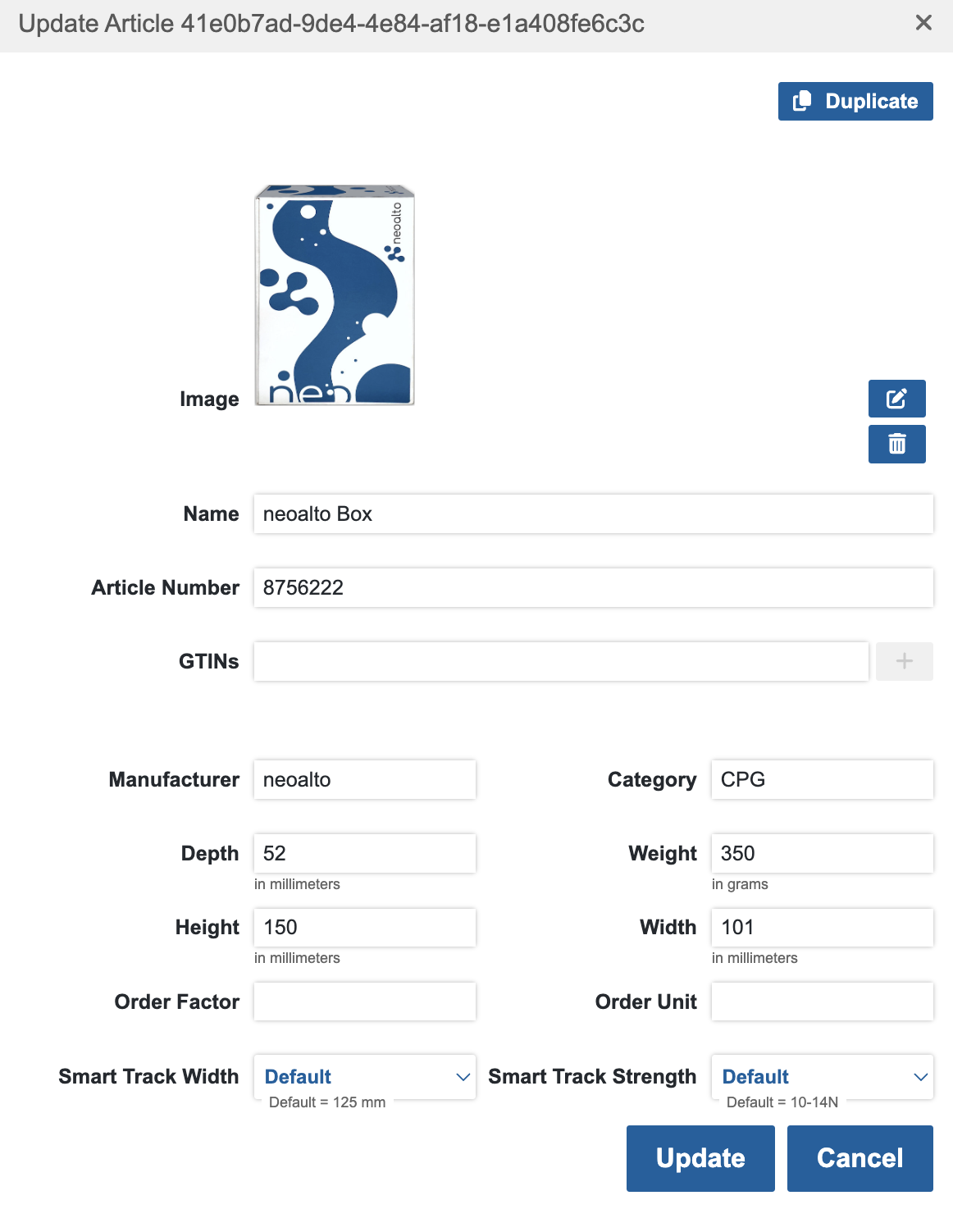
Any changes made here, will instantly propagate throughout the platform. You should see recalculated stocks on the virtual shelf and everywhere else.
The electronic shelf labels should start flashing and update with the updated article as well.
Importing Images
Importing Images is not required at all. Still it can be useful to make the article easier to identify.
Available Fields And Their Meaning
- Image: optional. This image is meant to make identifying the article easier for you. It is only used for display purposes in the cloud and self service.
- Name: optional. This value is meant to make identifying the article easier for you. This value is displayed on the label and is strongly recommended to be filled out. This value is searchable in the self service article list.
- Article Number: optional. This value is meant to make identifying the article easier for you. This value is displayed on the label and is strongly recommended to be filled out. This value is searchable in the self service article list.
- GTINs: optional. This value is meant to make identifying the article easier for you. This value is searchable in the self service article list.
- Manufacturer: optional. This value is meant to make identifying the article easier for you.
- Category: optional. This value is meant to make identifying the article easier for you.
- Depth*: required for auto orders. Necessary for correct calculations and selection of the correct devices.
- Weight*: required for auto orders. Necessary for correct calculations and selection of the correct devices.
- Height*: required for auto orders. Necessary for correct calculations and selection of the correct devices.
- Width*: required for auto orders. Necessary for correct calculations and selection of the correct devices.
- Order Factor*: required for auto orders. Can be
1:norn:1(or default:1:1). The lefthand value is what units we calculate, the righthand value is how many units we are ordering. - Order Unit*: optional. If your integration has multiple unit sizes, this keeps track of what unit exactly is ordered.
- Smart Track Width: optional. These value is calculated by our system by default. If you want to overwrite what device configurations you want to outfit for that article, you can overwrite said value here.
- Smart Track Strength: optional. These value is calculated by our system by default. If you want to overwrite what device configurations you want to outfit for that article, you can overwrite said value here.