Supply Points
Supply Points are the where or sometimes the who of what is being tracked, calculated and kept in stock.
Most users distinguish Supply Points by physical location or access, but you can also use Supply Points for any other grouping you might need for your use case. This could be different providers, responsibilities, cost centres or anything else.
If you're unsure how to model your situation, reach out to us at support@neoalto.com.
To offer a degree of flexibility our model is allowing three different levels to be configured: Location, Zone and Supply Point.
Location is meant to describe the establishment, like the address and opening hours of an office or production site.
Zone is meant to hone in on the area a bite more. This can mean a production hall or a department. This level of
distinction is quite often not required and distinct enough from the Location. In that case we set this name to
default by convention.
Supply Point is meant to be the leaf of this hierarchy. This is what our sensors and automatic orders are attached to.
Create Supply Point
Since a Supply Point is the leaf part of our hierarchy, we will first have to set up our location and zone.
Configure Locations and Zones
To manage your locations, go to Administration > Locations.
You'll see a list of all your configured locations. You can either create a new location by clicking on the Create button or edit an existing location by scrolling to the last column Edit and clicking on the button with the edit icon.
Both pages will look almost the same. The Create only differs from the Edit in that the opening hours and the zone cannot be edited, until the location has first been created. Once created, both forms are exactly the same. In order to create a location, you will at least have to fill the location name. Even if all other fields are optional, we recommend filling out as much information as you can, especially since this information usually doesn't change all that often.
If you are going to set up Automatic Ordering for your location, you will be required to set an address. At least the street, zip code, street, city an country have to be set for Automatic Ordering to work.
On the pages you will see your location information on the left-hand side and your zones and supply points on the right
hand side.
A zone and a supply point will automatically be generated for you, both will be called default.
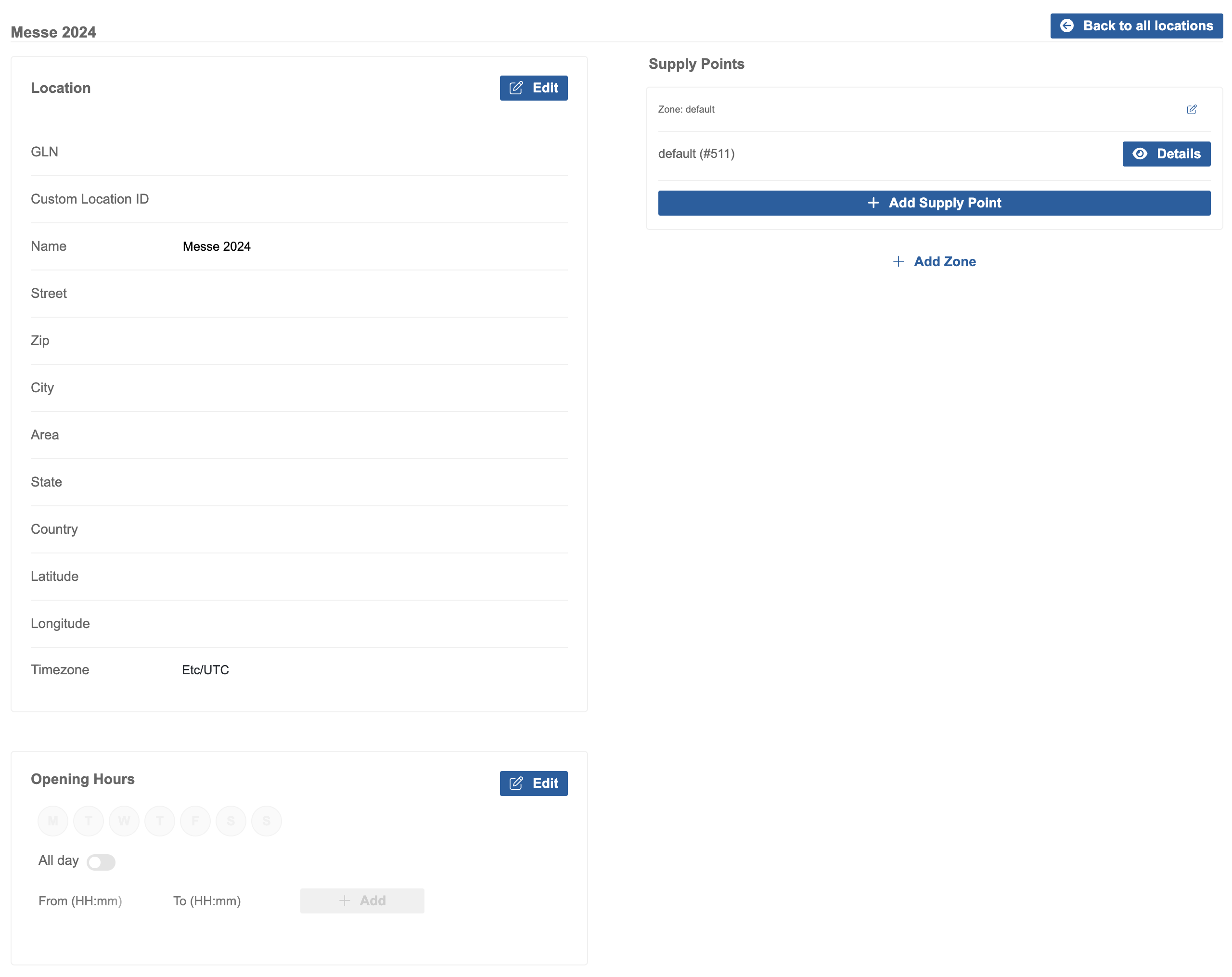
If a zone or a supply point is called default, the string default will not be part of the display name of a supply
point, which is usually concatenated as <LOCATION> - <ZONE> - <SUPPLYPOINT>. We treat default as a magic string.
Everything about the location, zone or supply point can still be updated at a later time.
You can fill out the supply point info further by clicking on the Details button or navigating to Administration > Supply Points (Shelves). Scroll to the last column Details and click on the button with the eye icon. In the detail view, click the Edit, make your updates and confirm by clicking Update.
For correct calculation of out of stock times set the correct timezone and opening hours. Otherwise opening hours can greatly skew the results.
We recommend giving your supply points recognizable short names, as these will show up on the electronic shelf labels, if provided. Otherwise the labels will show the supply point id.
Download Labels
You can download labels for multiple supply points in Administration > Supply Points (Shelves). You will see a list of all your supply points here. Select the supply points you want to download the labels for by clicking on the respective checkboxes. Once all have been selected, click Generate Labels (x) and select which orientation you would like to generate the labels for, then click Generate and shortly after, a PDF-download should begin shortly.
When preparing to ship out equipment for a new install, we recommend putting copies of the corresponding supply point labels along side the gateway and devices.
Add Articles And Devices To Supply Point
On how to manage articles and devices assigned to a supply point, please refer to our page on the supply point self service